
Exporting submissions allows you to download your form entries as a CSV file.
A CSV file can be opened in:
- Microsoft Excel
- Google Sheets
- Apple Numbers
- Any spreadsheet software
This is useful if you want to:
- Analyze data
- Share submissions with your team
- Create reports
- Back up your entries
- Import data into another system
What Is a CSV File?
CSV stands for Comma-Separated Values.
It is a simple file format where:
- Each row represents one submission
- Each column represents a field
For example:
| Name | Message | |
| John Doe | john@email.com | Hello |
When exported, each submission becomes one row in the file.
How to Export Submissions
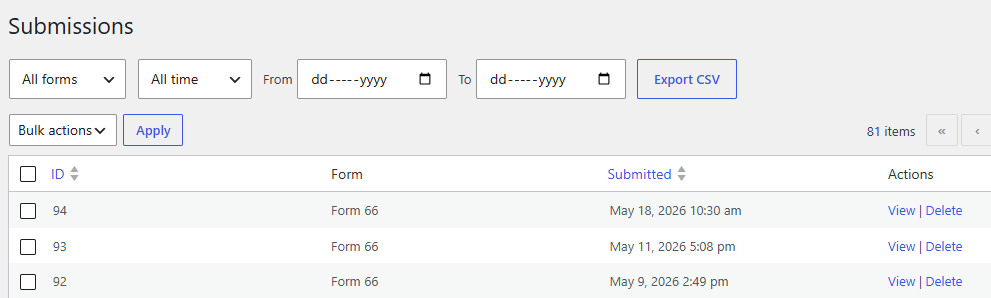
Follow these steps:
Step 1: Open the Submissions Page
- Go to your WordPress dashboard.
- Click Ray’s Contact Form.
- Click Submissions.
You will see the list of stored entries.
Step 2: Select the Form (If Applicable)
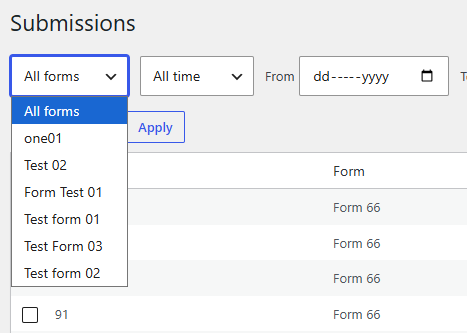
If you have multiple forms:
- Use the form filter dropdown (if available).
- Select the form you want to export.
This ensures you export only submissions from that specific form.
Step 3: Click Export
- Locate the Export CSV button.
- Click it.
Your browser will automatically download a CSV file.
Opening the CSV File
After downloading:
In Microsoft Excel
- Open Excel.
- Click Open.
- Select the downloaded CSV file.
Each submission will appear in its own row.
In Google Sheets
- Open Google Sheets.
- Click File → Import.
- Upload the CSV file.
Your data will be displayed in spreadsheet format.
What Information Is Included?
The exported file typically includes:
- Submission ID
- Date submitted
- All form field values
- Any additional metadata
Each column header matches your form field labels.
Exporting for Backup
It is good practice to:
- Export submissions monthly
- Store backups securely
- Keep copies before deleting forms
This ensures you never lose important data.
Cleaning Data in Excel
After exporting, you can:
- Sort by date
- Filter by email
- Remove duplicate entries
- Create charts or reports
CSV export gives you full flexibility.
Common Questions
Can I export only selected submissions?
Currently, exports include all submissions for the selected form.
If you need filtering, you can filter inside Excel after exporting.
Will exporting delete submissions?
No. Exporting does not remove data.
It simply creates a downloadable copy.
Can I re-import the CSV into the plugin?
CSV export is designed for reporting and backup.
It is not intended for re-importing into the form.
Best Practices
✔ Export regularly if you receive many submissions
✔ Store backups securely
✔ Remove spam before exporting
✔ Keep sensitive data protected
What to Learn Next
Now that you know how to manage and export submissions, you may want to explore: