
Advanced Fields allow you to collect structured, dynamic, or enhanced information beyond standard text inputs.
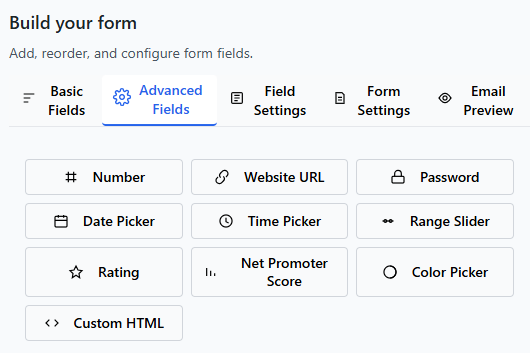
While Basic Fields are ideal for simple forms, Advanced Fields help you build:
- Booking forms
- Application forms
- Service request forms
- Quote forms
- Registration forms
- Data collection workflows
Advanced Fields integrate seamlessly with:
- Conditional Logic
- Multi-column layouts
- Email notifications
- Theme styling
- Pro feature expansion
This guide explains each Advanced Field in detail.
Number Field
Numeric input field.
The Number field restricts input to numbers only.
Best Used For:
- Quantity
- Age
- Budget
- Order number
- Reference numbers
Key Features:
- Numeric validation
- Min/Max value support (if configured)
- Required option
- Conditional Logic support
When to Use It
Use Number when you need numeric data — not general text.
Website URL Field
URL input field with format validation.
This field ensures users enter a valid website address.
Best Used For:
- Company website
- Portfolio link
- Social media profile
- Project reference
Key Features:
- URL format validation
- Required option
- Conditional Logic support
Using this field reduces invalid link submissions.
Password Field
Hidden text input for secure entry.
The Password field masks input characters.
Best Used For:
- Private access forms
- Restricted submission forms
- Verification forms
Key Features:
- Masked input
- Required option
- Conditional Logic support
Note: This is not a full user authentication system, but can be used for controlled access forms.
Date Picker Field
Calendar-based date selection field.
The Date Picker allows users to select a date from a calendar interface instead of typing it manually.
Best Used For:
- Appointment scheduling
- Event registration
- Delivery dates
- Reservation requests
Key Features:
- Calendar selection interface
- Reduces formatting errors
- Conditional Logic support
- Column layout support
When to Use It
Use Date Picker when collecting time-sensitive or scheduled information.
Avoid manual date fields when accuracy matters.
HTML Block Field
Insert custom content inside your form.
The HTML Block allows you to add formatted content between fields.
Best Used For:
-
- Section headings
- Instructions
- Disclaimers
- Custom formatting
- Legal notices
Key Features:
- Flexible content insertion
- Improves form organization
- Works with layout settings
When to Use It
Use HTML Block to improve clarity in longer forms.
It does not collect data — it enhances structure.
Time Field
Input field for selecting a specific time.
The Time field allows users to input or select a time value in a standardized format.
Best Used For:
- Appointment Time
- Meeting Time
- Preferred Contact Time
- Event Scheduling
Key Features:
- Custom label
- Required option
- Default value
- Time format support (12h / 24h)
- Column width control
- Conditional Logic support
When to Use It
- Use the Time field when you need users to provide a precise time.
- Avoid using a Text field, as it can lead to inconsistent formatting.
Color Field
Interactive color picker field.
The Color field allows users to visually select a color using a native color picker interface.
Best Used For:
- Theme selection
- Brand color input
- Design preferences
- Customization options
Key Features:
- Color picker UI
- Default color value
- Custom label
- Required option
- Column width control
- Conditional Logic support
When to Use It
- Use the Color field when users need to select or input a color value visually.
- Avoid using text-based inputs for colors, as they are less user-friendly.
Range Field
Slider-based numeric input field.
The Range field allows users to select a value within a defined range using a slider.
Best Used For:
- Satisfaction level
- Budget range
- Experience level
- Priority selection
Key Features:
- Min / Max range
- Step intervals
- Slider UI
- Default value
- Custom label
- Required option
- Column width control
- Conditional Logic support
When to Use It
- Use the Range field when you want a more interactive way for users to select a numeric value.
- Avoid using it for precise inputs where exact numbers are critical.
Rating Field
Visual rating input field (e.g., stars).
The Rating field allows users to provide feedback through a visual rating system.
Best Used For:
- Product reviews
- Service feedback
- Experience rating
- User satisfaction
Key Features:
- Star or icon-based rating
- Custom scale (e.g., 1–5)
- Default value
- Custom label
- Required option
- Column width control
- Conditional Logic support
When to Use It
- Use the Rating field when collecting qualitative feedback in a simple, visual way.
- Avoid using it when detailed written feedback is required.
NPS Field
Net Promoter Score (NPS) input field.
The NPS field measures customer loyalty by asking how likely users are to recommend your product or service.
Best Used For:
- Customer satisfaction surveys
- Product feedback
- Service evaluation
- User loyalty tracking
Key Features:
- 0–10 scale input
- Promoter / Passive / Detractor classification
- Custom label
- Required option
- Column width control
- Conditional Logic support
When to Use It
- Use the NPS field when measuring overall customer sentiment and loyalty.
- Avoid using it for general feedback — it is specifically designed for NPS scoring.
Advanced Fields and Conditional Logic
All Advanced Fields can be used with Conditional Logic.
Examples:
- Show File Upload only if “Support Request” is selected
- Show Date Picker only if “Book Appointment” is selected
- Show Address only if “On-site Service” is selected
This keeps your form dynamic and clean.
Advanced Fields and Multi-Column Layouts
Most Advanced Fields support column width settings.
You can:
- Place Phone and Date side by side
- Align Address next to related fields
- Create structured multi-column forms
Always test your layout in the Theme Preview panel.
Performance Considerations
Some Advanced Fields (like File Upload) may:
- Increase storage usage
- Increase server processing
- Require careful configuration
Only use Advanced Fields when they provide real value to your form.
Choosing the Right Advanced Field
Here’s a quick reference:
- Collect files → File Upload
- Collect phone numbers → Phone
- Select dates → Date Picker
- Collect structured address → Address
- Store internal data → Hidden Field
- Add instructions → HTML Block
Choose the field that best matches the data you need.
Best Practices for Advanced Fields
✔ Only add fields that are necessary
✔ Combine with Conditional Logic for cleaner UX
✔ Keep layouts organized with Section Breaks
✔ Test file uploads before publishing
✔ Review submissions to ensure data is collected properly
Related Guides
To get the most out of Advanced Fields, explore: