
Basic Fields are the core building blocks of your forms.
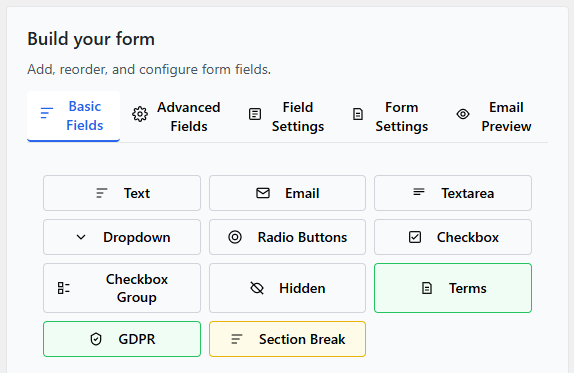
They are designed for:
- Contact forms
- Inquiry forms
- Feedback forms
- Simple registrations
- Lead capture forms
Each Basic Field is easy to configure and works seamlessly with:
- Multi-column layouts
- Conditional Logic
- Email notifications
- Theme styling
This guide explains every Basic Field in detail.
Text Field
Single-line text input field.
The Text field is one of the most commonly used fields.
Best Used For:
- First Name
- Last Name
- Company Name
- Subject
- Short answers
Key Features:
- Custom label
- Placeholder text
- Required option
- Default value
- Column width control
- Conditional Logic support
When to Use It
Use the Text field when you need short, single-line input.
Avoid using it for long messages — use Textarea instead.
Email Field
Email address input field with built-in validation.
The Email field ensures users enter a properly formatted email address.
Best Used For:
- Contact forms
- Newsletter signups
- Account inquiries
- Quote requests
Key Features:
- Email format validation
- Required option
- Placeholder support
- Conditional Logic support
Why Use Email Instead of Text?
The Email field validates input automatically, reducing errors and improving deliverability.
Textarea Field
Multi-line text input field.
Textarea is designed for longer responses.
Best Used For:
- Message fields
- Detailed inquiries
- Feedback
- Comments
- Support descriptions
Key Features:
- Multi-line input
- Adjustable column width
- Required option
- Conditional Logic support
When to Use It
Use Textarea whenever users need to provide detailed information.
Avoid placing Textarea inside narrow columns.
Phone Field
Single-line input field for phone numbers.
The Phone Number field is designed specifically for capturing phone numbers with proper input types on mobile devices.
Best Used For:
- Phone Number
- Mobile Number
- Contact Number
- WhatsApp Number
Key Features:
- Custom label
- Placeholder text
- Required option
- Default value
- Column width control
- Conditional Logic support
- Mobile-friendly numeric keypad
When to Use It
Use the Telephone field when collecting phone numbers to improve mobile user experience.
Avoid using a Text field for phone numbers, as it won’t trigger the numeric keypad on mobile devices.
Select Field
Selectable list of predefined options.
Dropdown allows users to choose one option from a list.
Best Used For:
- Inquiry type
- Service category
- Department selection
- Country selection
Key Features:
- Custom option list
- Default selection
- Conditional Logic support
- Column width control
When to Use Dropdown
Use Dropdown when:
- You want to save space
- You have many options
- Only one option should be selected
Radio Buttons
Single selection from visible options.
Radio Buttons allow users to choose one option, but all choices are visible.
Best Used For:
- Yes / No questions
- Preference selection
- Short option lists
Key Features:
- Visible option list
- Single selection
- Conditional Logic support
When to Use Radio Buttons
Use Radio Buttons when:
- You have 2–4 options
- You want options clearly visible
Avoid using for long lists — use Dropdown instead.
Checkbox (Single)
Single agreement or toggle option.
This field allows users to check or uncheck a box.
Best Used For:
- Terms & Conditions agreement
- Newsletter opt-in
- Consent confirmation
Key Features:
- Required option
- Conditional Logic support
This is commonly used for compliance and permissions.
Checkbox Group
Multiple selectable options.
Checkbox Group allows users to select more than one option.
Best Used For:
- Services needed
- Interests
- Feature selection
- Preferences
Key Features:
- Multiple selections
- Custom option list
- Conditional Logic support
Use this when users may select more than one answer.
Hidden Field
Invisible field that stores predefined data.
Hidden Fields are not visible to users but store information in the submission.
Best Used For:
- Campaign tracking
- Identifying form source
- Passing internal identifiers
- Storing fixed values
Example:
If a form is placed on a pricing page, you can store:
Source: Pricing Page
Key Features:
- Not visible to users
- Automatically included in submission data
- Useful for integrations
When to Use It
Use Hidden Fields for internal tracking and automation workflows.
Do not use it to hide required user input.
Terms and Conditions Field
Checkbox field for user agreement.
The Terms and Conditions field requires users to agree before submitting the form.
Best Used For:
- Accepting terms of service
- User agreements
- Policy acknowledgments
- Legal confirmations
Key Features:
- Required checkbox enforcement
- Custom label with link support
- Error message handling
- Column width control
- Conditional Logic support
When to Use It
- Use this field when users must explicitly agree to terms before submission.
- Avoid making it optional if it is legally required.
GDPR Consent Field
Checkbox field for data privacy consent.
The GDPR field ensures users give explicit consent for data collection and processing.
Best Used For:
- Data collection consent
- Marketing opt-in
- Privacy policy agreement
- Compliance with GDPR regulations
Key Features:
- Explicit consent checkbox
- Custom consent text
- Privacy policy link support
- Required option
- Column width control
- Conditional Logic support
When to Use It
- Use the GDPR field when collecting personal data from users, especially in regions requiring compliance.
- Avoid pre-checking this field, as consent must be explicitly given by the user.
Section Break
Visual separator and grouping element.
Section Break helps organize longer forms.
Best Used For:
- Dividing form sections
- Creating logical groupings
- Improving readability
Example:
Personal Information
— Section Break —
Project Details
— Section Break —
Additional Notes
Section Break does not collect data — it improves layout and clarity.
Using Basic Fields with Conditional Logic
All Basic Fields support Conditional Logic.
You can:
- Show fields based on dropdown selections
- Hide optional fields
- Create dynamic form flows
For example:
Show “Company Name” only if “Business” is selected.
This keeps forms clean and user-friendly.
Using Basic Fields with Multi-Column Layouts
Basic Fields support column width settings.
You can:
- Place two Text fields side by side (50% + 50%)
- Create three equal columns (33% each)
- Mix widths for custom layouts
This allows professional form designs without custom coding.
Choosing the Right Field
Here’s a quick reference:
- Short answer → Text
- Email address → Email
- Long message → Textarea
- Numeric input → Number
- One selection (many options) → Dropdown
- One selection (few options) → Radio Buttons
- Multiple selections → Checkbox Group
- Agreement → Single Checkbox
- Layout separation → Section Break
Best Practices for Basic Fields
✔ Keep forms short
✔ Only require essential fields
✔ Use clear labels
✔ Combine with Conditional Logic for better UX
✔ Test on mobile devices
Related Guides
To get more out of Basic Fields, explore: